How to use Organize PDF Pages
- Add one PDF in the PDF file field.
- Wait for the page list, then use a row's Move up, Move down, rotate, duplicate and delete controls.
- Use Move to position when a page has to jump several places. Type the number and the row lands there.
- Select Build the new order and download the -organized.pdf file.
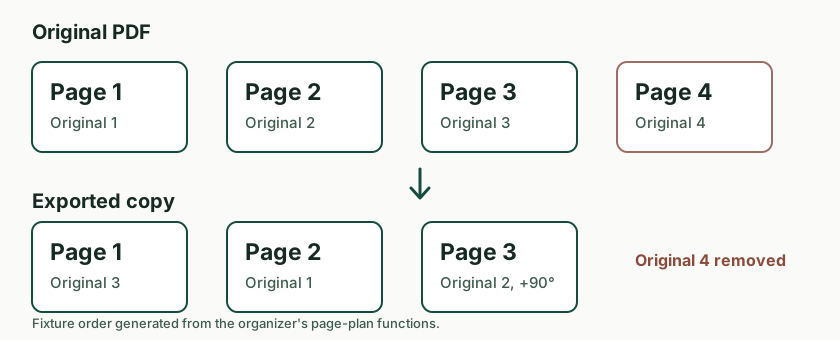
Example: Organize PDF Pages
Rotate one page in a three-page PDF and export the rebuilt file.
Options
- Move to position
- The number counts the list as it looks now, from 1 at the top. The row leaves its old place first, so position 3 always means the third row you can see.
- Rotate selected 90 degrees
- Each click adds a quarter turn on top of the rotation the page already carries.
- Undo last change
- Reverses whole actions one at a time and keeps the last 50 changes, so a wrong delete is worth trying before you reload.
Supported inputs and limits
Where your input is processed
This tool processes your input in this browser. Your text and files are not uploaded to UseFreeTools. Check this tool's limits for anything it may save on your device.
The order is the whole job
Every row keeps its own identity while it moves, which is what makes a position number safe: the row is taken out of the list before the target position is read, so a move to position 3 means the third row you can see. Rotations stack on top of whatever turn a page already carries, and the plan is checked before any page is copied.
Questions about Organize PDF Pages
Will my bookmarks and form fields survive?
No. Bookmarks, embedded files, form field definitions and digital signatures describe a document as a whole. The result tells you which the source had, so you can rebuild what matters.
What if the PDF needs a password to open?
This tool cannot read an encrypted file, and stripping the password would change your document. Save an unprotected copy first, then organize that.
Does rotating a page also rotate the text on it?
Yes. A quarter turn rotates the whole page, so everything on it turns too. A sideways scan usually needs one turn, not two.
Can I copy a page instead of moving it?
Use Duplicate on the row. The copy sits directly below the original, and the two rows are independent.