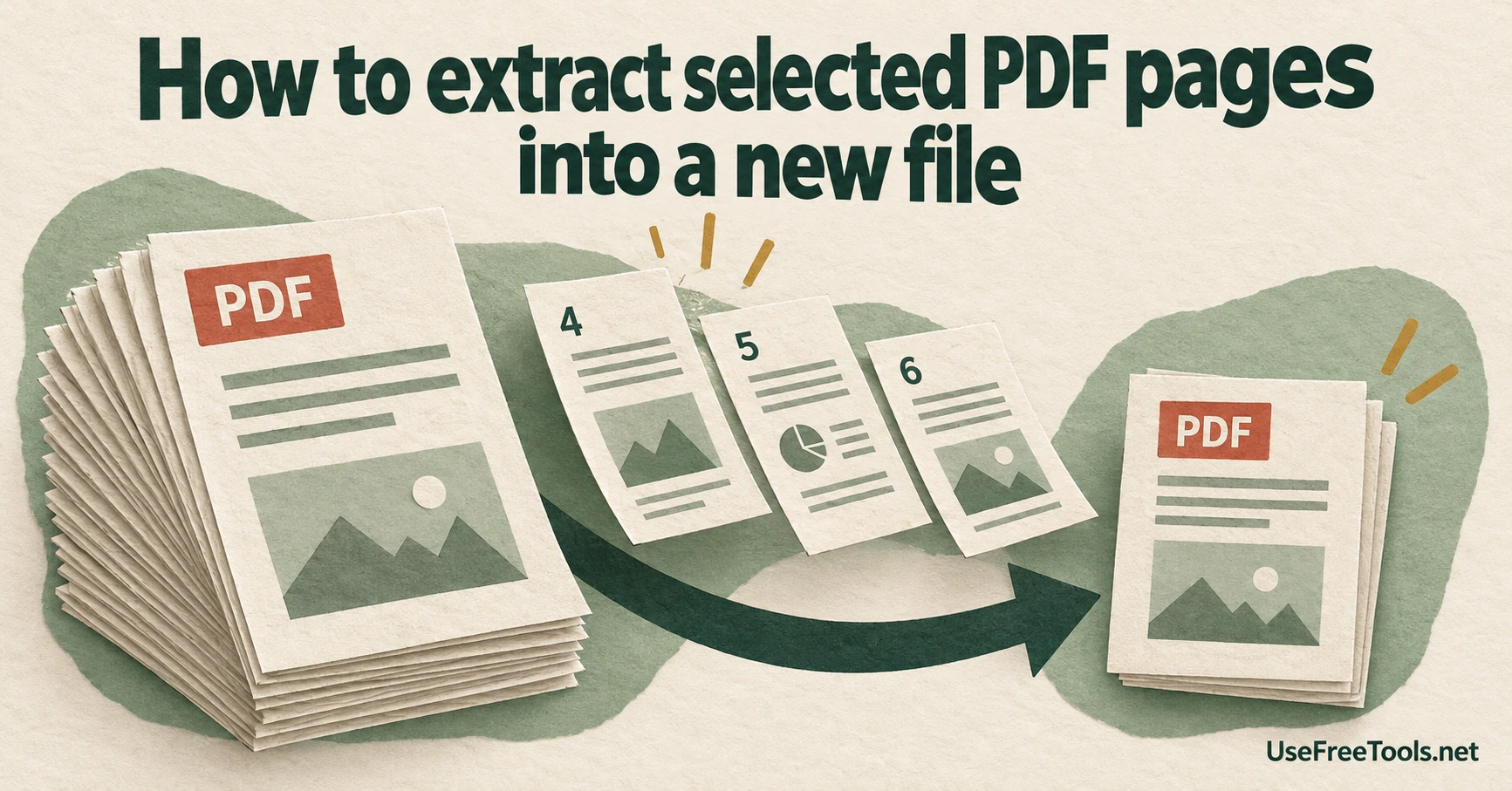
Extracting pages means saving part of a PDF as a new file while the original stays untouched. Use Extract PDF Pages and type the pages you want as a range. A contiguous range such as 4-6 becomes one new PDF. Several comma separated ranges each become their own file, and the run returns a ZIP. That last part surprises people, so it is worth saying plainly: typing 1-3, 7 and 9 gives you three files, not one document holding pages 1, 2, 3, 7 and 9.
The page opening on range mode is deliberate. Extracting means naming the pages you want, and the per-page mode stays one click away when you need every page as its own file.
Pick the tool that matches the shape of the job
Three tools touch pages, and they answer different questions.
- Extract PDF Pages saves typed ranges as new files. Use it when you want a section on its own.
- Split PDF makes one file per page, or one file per typed range. Use it when the parts have to stay separate anyway.
- Organize PDF Pages rewrites the whole document. Use it when scattered pages have to end up in one file.
The distinction matters most when the pages you want are not next to each other. Extraction treats every typed range as a separate output, so scattered pages produce scattered files. To get scattered pages into a single new document, delete the pages you do not want in Organize PDF Pages and export the rest, or extract the pieces and combine them in a second step.
Separate the page number from the printed label
Page numbers in these tools count physical pages from 1, the same way a PDF viewer counts them. That is not always the number printed on the page. A report can carry a cover, a contents page, and then a printed numbering that restarts at 1. The extractor still calls the first content page physical page 3.
Get this right before you type a range. Open the document, jump to the page you want in the viewer, and read the page number the viewer shows. Then check what is printed on that page. If the two disagree, trust the viewer for the range and the page itself for the content. A range that runs past the last page is refused with the real page count rather than trimmed quietly, and 0 is refused because counting starts at 1.
What extraction does and does not change
Extraction copies the selected pages into a new file. It does not delete them from the original, does not blur anything, and does not remove content from the pages it copies. A name, an account number, or a photo that appears on page 4 is still on page 4 in the new file. Hiding information is a different job with a different tool.
Document level data behaves the way it does in most page level tools. Bookmarks, embedded files, form field definitions and digital signatures do not travel into the parts. The original keeps them. If a part has to stay signed, keep it in its original file rather than extracting it again. Encrypted PDFs are not supported, so remove the password from a document you own first and then extract.
Each comma separated entry becomes its own file, and overlapping entries repeat pages. Typing 1-3, 2-4 produces two files that both contain pages 2 and 3. The per-page mode returns a ZIP, and any run that produces exactly one file returns that PDF directly. A part name is optional. Leave it empty and the source name carries the page range, or type a name to replace the source name in the output.
Check the text before you cut
PDF to Text reads the text layer a PDF already stores and writes it to a plain text file. It reads up to 100 pages per run, refuses password protected files, and runs no text recognition, so a scanned page exports empty and is named in the result. Two layout modes are available. Plain text joins runs that share a baseline, which suits a single column, and keeping approximate positions pads each run into a fixed width column.
A quick text pass answers a question a page viewer cannot: which pages actually mention the thing you are looking for. Search the exported text, note the physical page numbers, then extract those pages. Turn on the page markers so the text file records where each page begins and ends, or turn them off when the text is going straight into another document.
A worked example
Say a 40 page contract has three signature pages at physical pages 12, 27 and 38, and you want them as one file.
Extract PDF Pages will not do that in one run. Typing 12, 27, 38 produces three files inside a ZIP, because each comma separated entry is its own output. Two workable routes exist.
The first route starts with the three range outputs. Extract 12, 27, 38, unpack the ZIP, and combine those three PDFs with Merge PDF in that order. The result is one three-page file. Check each extracted part before merging so that a wrong selection is easy to correct.
The second route builds one file in a single pass. Open the 40 page contract in Organize PDF Pages, delete every page except 12, 27 and 38, and build the new order. You get one three page PDF, and the original stays as it was. The deletions exist only in the new file you download, never in the source.
Both routes are valid. The first is safer when you are unsure which pages you need, because you never have to work through the whole document in one view. The second is faster when you want a few known pages in one file.
Verify the result
Check four things on the extracted file:
- The page count matches the number of pages you asked for.
- The first and last page hold the content you expected.
- Text on the pages is still selectable, unless the source page was a scan.
- Any page that carried a form field or a signature is checked in the new file, because those features do not travel.
Confirm the original is unchanged as well. Extraction writes a new file and leaves the source alone, so the source should still have its full page count and its original name. If you overwrote it by mistake, you have lost the pages you removed, which is the reason to keep a copy before any batch of cuts.