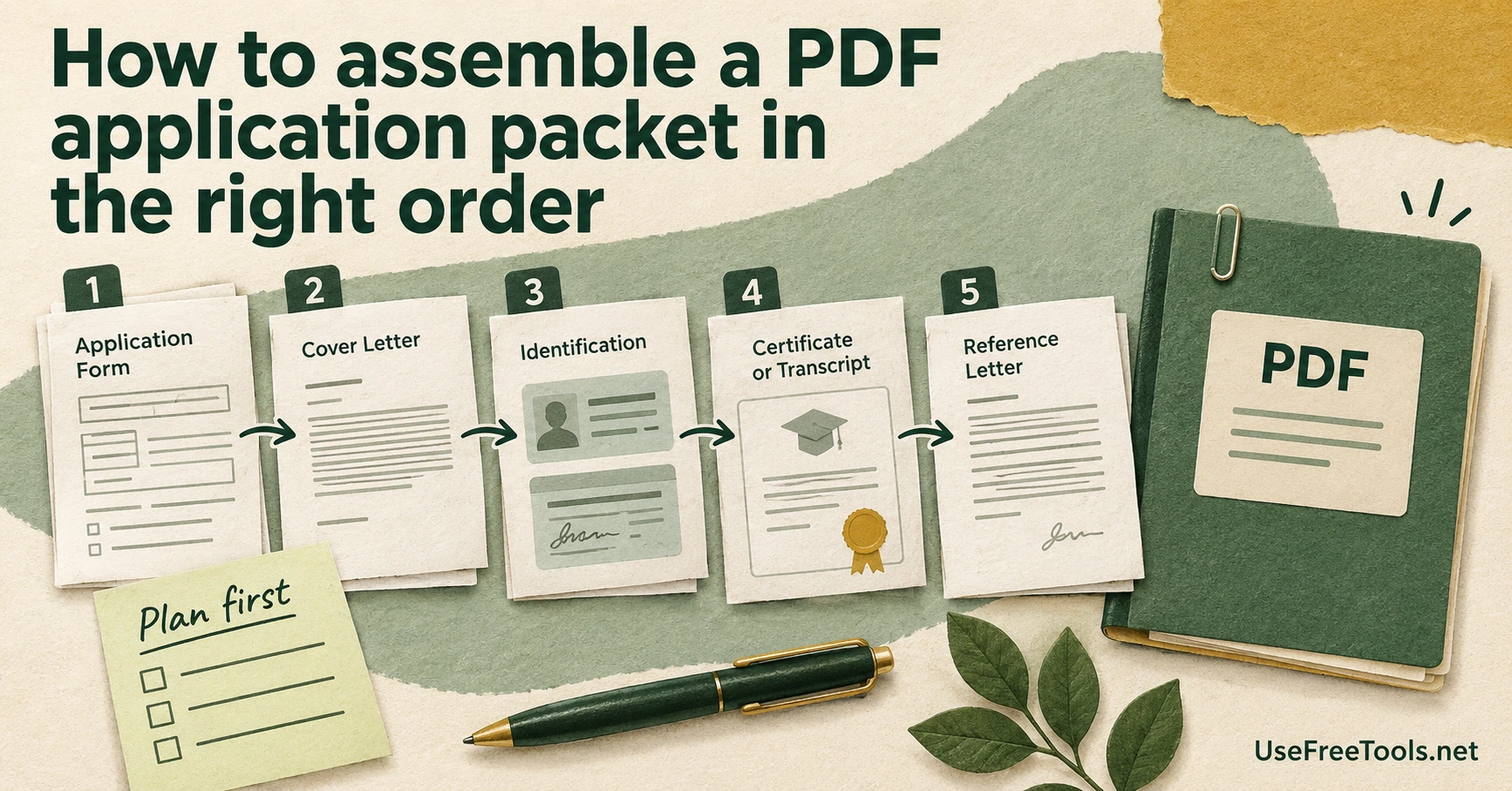
A PDF application packet is one file that presents its parts in the order a reviewer expects to read them. Build it by writing the order down first, merging the parts with Merge PDF, fixing the page order, adding page numbers, and checking the finished file before you send it. Starting with the merge is the usual mistake, because you find the missing page after the packet is already assembled.
The order matters because a reviewer reads the file from the first page to the last, without the labels and folders you had on your own computer. Your job is to reproduce the reading order the receiving office described.
Write the order down before you open a tool
Packet work fails at the planning step more often than at the file step. List every part in the order the receiving office asks for, and note where each part comes from.
- Application form, exported to PDF
- Cover letter, written as a PDF
- Identification scan, photographed on a phone
- Certificate or transcript, downloaded from the issuer
- Reference letter, saved from an email
The list tells you which files still need to exist, which ones are still images, and which ones need exporting from another app first. Offices differ. Some state a required order, some only state what must be included. The instructions you were given decide the order, and no tool can tell you whether a packet satisfies an office rule.
Merge the parts in the written order
Merge PDF combines two or more PDF files into one document and keeps the pages of each file together. The list order is the page order, so a two page cover letter placed first contributes pages 1 and 2, and the form that follows starts on page 3.
Know the limits before you build. One run accepts up to 20 files, 50 MiB each, 100 MiB in total, and 500 pages across all inputs. A job over the page budget stops before any page is copied and reports the real total rather than returning a shortened file. Password protected PDFs are refused instead of opened, so unlock a document you own first.
Page content is copied without re-encoding, so text, images and vector drawing keep their quality. Document level data does not travel with the pages. Bookmarks, embedded files, form field definitions, document JavaScript and digital signatures stay in their source files, and the result names the inputs that had them. The merged packet does not retain the source document's valid digital signature. A visible signature image is different from the certificate signature a PDF reader validates. Adobe explains the restrictions on signed PDFs, so keep the original signed file for any verification the recipient requires. Send signed documents separately unless the recipient says otherwise, and keep the signed original until the application is finished.
Turn photos and scans into PDF pages
Phone photos and flatbed scans are images, not pages of a document. Images to PDF places JPEG, PNG and WebP images into one PDF, one image per page. HEIC, TIFF and GIF are refused because the writer cannot embed them, so export those shots as JPEG or PNG first. On a phone that usually means sharing the photo as a JPEG rather than handing over the original file.
Pick a page size for the whole run. A4 or US Letter keeps every page the same shape and scales an oversized image down to fit inside the margin. Fit the page to each image builds each page around its own image instead, so a 900 pixel wide photo produces a 900 point wide page and nothing is resampled. Orientation can match each image, which turns the page sideways for a wide photo, and the margin accepts a value from 0 to 50 millimeters.
Remember what the output is. The result is pictures on pages with no text layer, so a scanned page cannot be selected or searched, and no text recognition runs. If a form has to be filled in, fill it in the original document and export a clean copy rather than photographing a blank page.
Fix the order after the merge
Merging in order is faster than repairing a packet later, but a wrong page still happens. Organize PDF Pages reorders, rotates, duplicates and deletes pages inside one PDF, up to 50 MiB and 200 pages, with at most 500 changed rows and at least one surviving page. Move up and Move down handle small shifts, Move to position handles a page that jumps several places, and Undo reverses whole actions one at a time.
Two details matter for packet work. The rebuilt file does not carry bookmarks, embedded files, form field definitions, document scripts or digital signatures, and it names the ones it found. Annotation behavior has not been verified for every annotation type, so check annotated pages in the export. If you need to lift one section out rather than rearrange everything, Extract PDF Pages saves a typed range as its own file.
Number the pages and audit the result
Add Page Numbers to PDF stamps a label on the pages you choose. The margin accepts 12 to 144 points, the text 6 to 36 points, and the first number 1 to 99999. A typed range wins over the skip first page option, and the first number lands on the first selected page, which is not always page 1. A style such as 1 of 5 counts numbered pages, so a skipped cover does not inflate the total. The label is drawn on top of the page, and a rotated page keeps it upright.
Numbering doubles as an audit. When page 7 of 12 is missing, the gap is visible on the page itself. After numbering, open the file and check:
- Go to the last page and confirm the count matches the numbering.
- Select a line of text on a digital page to confirm it is text and not a picture.
- Confirm each part appears once, in the expected order.
- Re-check any page that had a form field or a signature.
A worked example
Say an office asks for a cover letter, an application form, identification, a certificate, a reference letter and a checklist. You have the cover letter as a one page PDF, the form as a two page PDF, two photos of an ID card, the certificate as a one page PDF, the reference letter as a three page PDF, and the checklist as a one page PDF.
| Part | Source | Pages in the packet |
|---|---|---|
| Cover letter | 1 | |
| Application form | 2 and 3 | |
| Identification | Two photos | 4 and 5 |
| Certificate | 6 | |
| Reference letter | 7 to 9 | |
| Checklist | 10 |
Build the ID pages with Images to PDF at A4 and a margin of 10 millimeters, then merge the six PDFs in the order above: cover letter, form, ID pages, certificate, reference letter and checklist. Number pages 1 to 10 with no skipped cover, and confirm the totals row reads 10. These numbers are an illustration of the method, not a rule about any office.
Pitfalls that survive a correct merge
- A scanned page may look right but carry no selectable text. A tool that relies on the existing text layer cannot read those words; that requires separate text recognition.
- Form field definitions do not transfer, so a fillable form arrives as fixed page content. The words and lines you can see are still on the page, and text can stay selectable, but the fields are no longer interactive, so check that every value you typed is still visible.
- Bookmarks and embedded files from the source files are not recreated.
- A signed page loses its signature in the merge, even when the visible signature line is still printed.
- Filenames tell you nothing about content, so open the merged packet and read it.
Before you send the file
Open the packet once more, not just the individual parts. Check the first page, the last page, the numbering and the text selection. Confirm the order against the office instructions, and confirm that any signed or fillable document is either intact or sent separately. When the file reads correctly from the inside, it is ready to attach.