How to use Image Stitcher
- Choose 2 to 10 images in the Images in output order field.
- Use Up and Down in the file list to set the order.
- Choose a Join direction, then set the Gap in pixels.
- Pick an Alignment across the join and an Output format.
- Select Join the images, then download the single result.
Example: Image Stitcher
Join two 512 by 512 PNGs top to bottom.
Options
- Alignment across the join
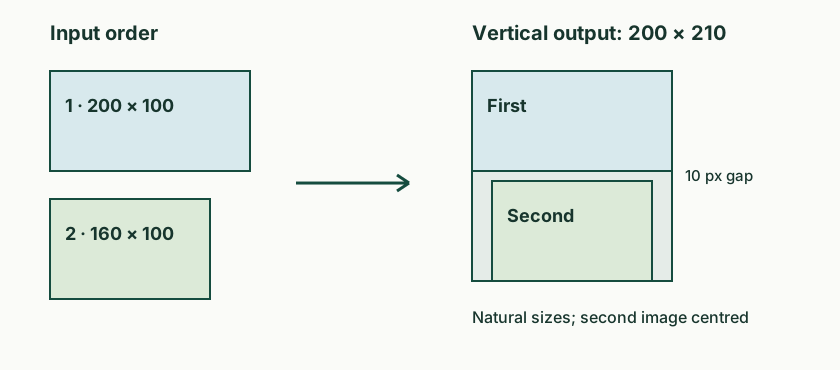
- Start, center or end decides where a smaller image sits on the cross axis. Whatever is left over shows the background you chose.
- Image size and Shared height or width
- Natural keeps every image at its own size. Uniform resizes all of them to one shared height or width and keeps each aspect ratio, which helps when screenshots were taken at different scales.
- Background and Solid color
- Transparent needs PNG or WebP, because JPEG cannot store transparency, so a JPEG join needs a solid background. The color field takes six hex digits such as #ffffff.
Supported inputs and limits
Where your input is processed
This tool processes your input in this browser. Your text and files are not uploaded to UseFreeTools. Check this tool's limits for anything it may save on your device.
How the joined canvas is measured
For a top-to-bottom join the canvas width is the widest image, and the height is the sum of the heights plus one gap between each pair. For a left-to-right join those roles swap. Center alignment puts half of the leftover space on each side of a narrower image, while start and end push all of it to one side. The finished canvas is checked against the output limit before anything is drawn, so a join that would be too large is refused instead of left half finished.
Questions about Image Stitcher
Can I use this to build a panorama?
No. Overlapping photos need software that finds matching features and blends the seam. This tool places whole rectangles in your order and leaves any empty area as background.
Why is there blank space beside one image?
The canvas takes the largest cross-axis size, so a narrower image leaves unused space. Alignment decides where that image sits inside the space, and the background fills the rest.
How do I change which image comes first?
Use the Up and Down buttons in the file list, which also work with the keyboard. The list order is the output order, so the top entry is the first panel in the result.
What does uniform size do to my images?
It resizes every image to one shared height for a left-to-right join, or one shared width for a top-to-bottom join, keeping each aspect ratio. A 1600 by 1200 screenshot at a shared width of 800 becomes 800 by 600.