Image Splitter

Split an image into PNG grid tiles or a printable A4 or Letter poster PDF.

Files stay on your device No sign-up Free to use
How this works

The tool runs in this browser. Your file or text is not uploaded to UseFreeTools. Check this tool's limits for anything it may save on your device.

Privacy details

Split the image controls

Drop your image here

or choose one from your device

Choose one JPEG, PNG or WebP image, up to 64 MiB and 20 megapixels.

    The grid makes one PNG per tile. The poster makes A4 or US Letter pages you can print and join.

    Rows × columns must be 40 tiles or fewer. Each tile downloads as a PNG inside a ZIP.

    The page turns to match the picture, so a wide photo prints on landscape paper.

    The resolution decides how many of the picture pixels fit on one page. A higher number fits more pixels per page, so fewer pages and a smaller joined print. A lower number spreads the picture over more pages, and each page carries less of it.

    Blank space left around each page for a printer that cannot print to the edge. At 8 mm or more each page also carries a small row and column label.

    Shared edge between neighbouring pages so the join is easy to line up.

    How to use Image Splitter

    1. Choose one JPEG, PNG or WebP image.
    2. Choose Grid for PNG tiles, or Poster for a printable PDF.
    3. Set rows and columns for a grid, or paper, DPI, margins and overlap for a poster. A run stops at 40 tiles or pages.
    4. Select Split the image, then download the ZIP or PDF and check its dimensions.

    Example: Image Splitter

    Cut one PNG into a 2 by 3 grid.

    You add
    A 512 by 512 PNG. Rows: 2. Columns: 3.
    You get
    The result reports a split into 2 rows and 3 columns (6 PNG tiles), lists the grid as R2 C3, and downloads image-1-tiles.zip. The tile boundaries are contiguous, so every source pixel lands in exactly one tile.

    Options

    Rows and Columns
    Each row and each column needs at least one source pixel, and the grid stops at 40 tiles. The tile names carry the row and column number, counted from the top-left corner.
    Print poster tiles
    Switch to Poster, choose A4 or Letter and set DPI, margins and overlap. Physical size comes from image pixels divided by DPI. The PDF repeats the overlap on shared edges; print at actual size rather than fit to page. Landscape is selected for wide pictures; other pictures use portrait pages. Higher DPI makes the joined poster smaller and can reduce the page count.

    Supported inputs and limits

    Input formatsOne JPEG, PNG or WebP image
    File sizeUp to 64 MiB and 20 megapixels
    TilesUp to 40 tiles, capped at 80 MiB before the ZIP
    One JPEG, PNG or WebP image up to 64 MiB and 20 megapixels. A run stops at 40 tiles, and the encoded tiles are capped at 80 MiB before the ZIP is built. Grid tiles are written as PNG, so splitting a JPEG in Grid mode returns PNG pieces, and embedded metadata is not carried over. Uneven sides give neighbouring tiles a one-pixel size difference, and the row and column counts cannot exceed the pixel height and width of the picture. Poster mode exports at most 40 A4 or Letter pages, using 72–600 DPI, margins and overlap of 0–40 mm. It does not infer a printer setting or embedded DPI.

    Where your input is processed

    This tool processes your input in this browser. Your text and files are not uploaded to UseFreeTools. Check this tool's limits for anything it may save on your device.

    Where the extra pixel goes

    A 1001-pixel width cannot be divided into three equal whole columns, so the split points are rounded down from fixed positions. The first column ends at 333 and the second at 667, which leaves 334 pixels for the last one. That is why one column is a pixel narrower while the tiles still total 1001. Reassembling the exported pieces is the quickest way to confirm that nothing is missing or doubled.
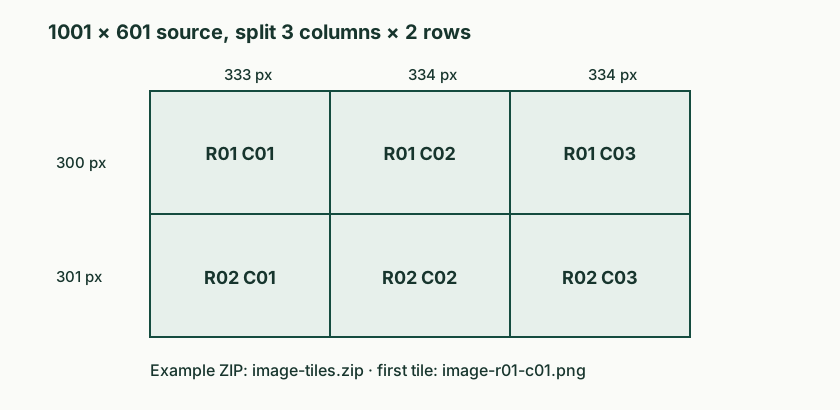
    A 1001 by 601 image split into three columns of 333, 334 and 334 pixels and two rows of 300 and 301 pixels. All six tile positions are labelled.
    Separate 1001 by 601 example: the extra pixels are assigned to later tiles. Labels show the row and column order used in the ZIP.

    Questions about Image Splitter

    How do I know where each tile belongs?

    Each file name ends with its position, such as two-r01-c02.png for row 1, column 2. Rows count from the top and columns from the left, which is the same order the grid is drawn on screen.

    Why are my columns different widths?

    A 1001-pixel width cannot be divided into three equal whole columns. The split points are fixed, so one column comes out a pixel narrower and the tiles still add back up to the original width.

    Can I split a PDF, a GIF or a video?

    No. This tool takes one JPEG, PNG or WebP image. PDF pages are handled by the PDF tools, and animated formats are not supported because the split would only cover a single frame.

    Can I have the tiles as JPEG or WebP instead of PNG?

    The splitter always writes PNG. Convert the tiles afterwards with an image format converter if you need a smaller lossy file, and check the result at the size you will publish.

    Project manager: Tony Hines · Content updated 4 October 2026 · Report a problem