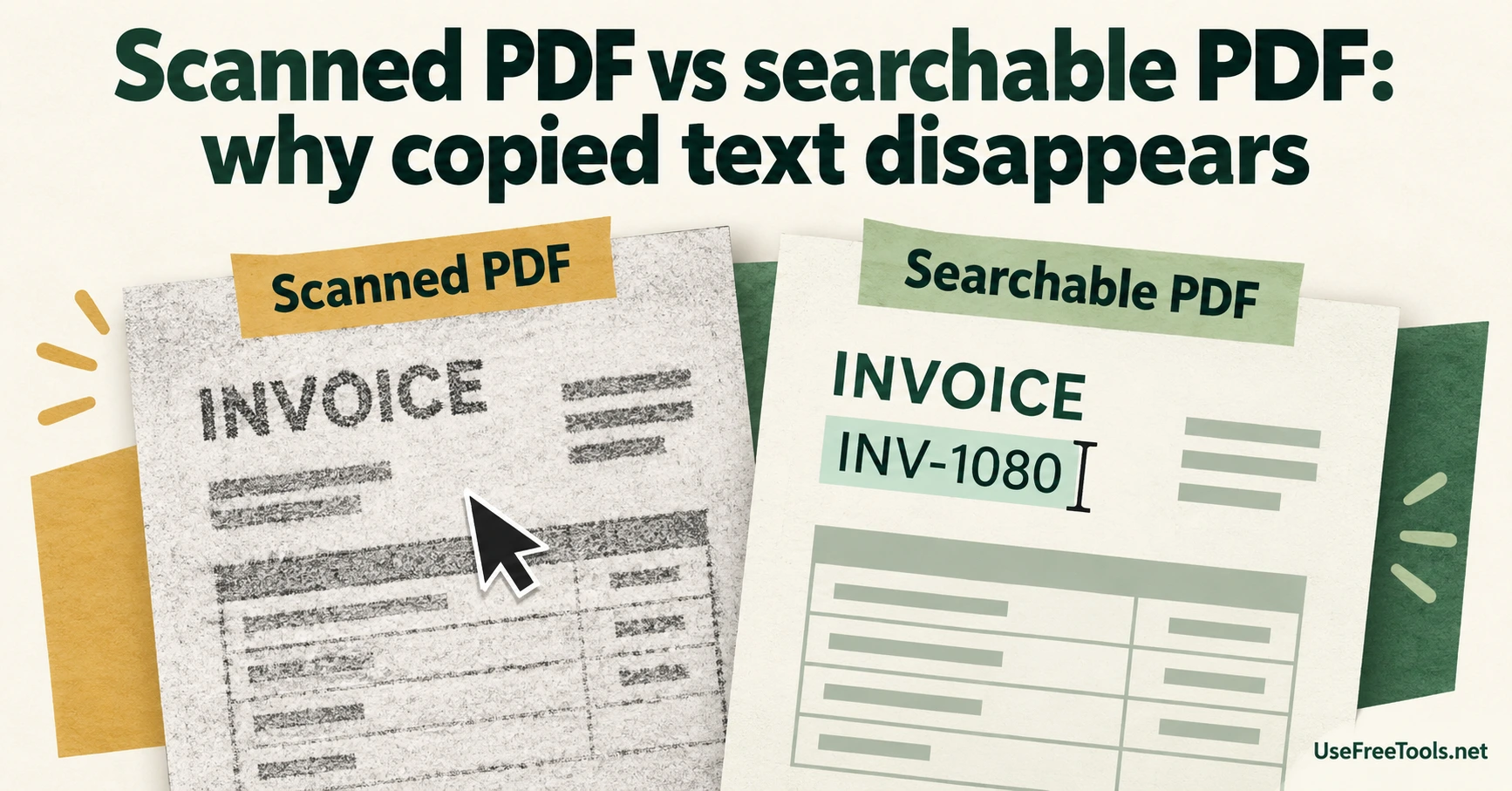
You open a PDF and try to copy a reference number. The clipboard is empty, even though the scan is easy to read. The page may hold only an image. A searchable file also contains text information that software can read, even when its visible page looks like a scan.
That difference explains an otherwise confusing result: a document opens perfectly, but extracting its text produces an empty file. The extraction tool may have nothing to read beyond the page image.
A text layer changes what you can do
Optical character recognition, or OCR, attempts to recognize letters in an image and add usable text. Adobe describes this process in its scanned-document guidance. OCR output still needs checking, particularly where a wrong character changes the meaning.
Consider a sample invoice containing the reference INV-1080. The picture can look correct while the recognized text reads INV-1O8O, with letters replacing zeros. Searching for the exact reference could then fail. A successful search for the supplier's name would not reveal that mistake.
For a document you intend to reuse as data, choose checks that reflect the job. Copy a reference number, a date and one complete sentence. Compare each with the visible page. A paragraph that reads reasonably well is a weak check for an account code.
Searchability and reading order are separate questions
Text can exist without coming out in a useful sequence. A two-column report might produce pieces of the left and right columns in an unexpected order. Headers, footers and page numbers can also interrupt copied paragraphs.
Use PDF to Text to inspect the text that can be extracted from a supported file. If the result is empty, investigate whether the document is image-only before repeatedly trying different export settings. The tool extracts existing text; it does not add OCR to a scan.
If the output contains words but mixes sentences, compare it against a page with a simple layout and another with columns or tables. This helps you distinguish an absent text layer from an ordering problem. Neither result proves that the document is accessible to a screen reader.
Choose the version for the recipient's task
A photograph of a receipt may be sufficient for someone who only needs to view it. A collection that staff must search by reference number needs a more reliable text workflow. A report that readers must quote needs both accurate characters and sensible extraction order.
PDF Inspector can help with a broader document check, but keep the acceptance question concrete: can the intended reader find and reuse the information they need? Retain the original scan when creating an OCR version, and label the new copy clearly. If the recognized text will feed a spreadsheet or another system, verify the important fields before treating it as source data.